

What’s new in Stormz: from quick polls to full workshops

I’ve spent the past month making changes across Stormz, from new ways to run visual polls and organize ideas to the small fixes that make a live session easier. A lot of this work comes directly from your feedback and from using Stormz in real sessions.
V3 is still in alpha, and it’s already been used remotely and in person, with small and large groups. Those different contexts help reveal what’s missing, what gets in the way, and what could work better.
Thank you to Ginny, Hector, Mehdi, Roxane, Raquel, Jeff, Ruben, Augusto, Said, Nathy, and everyone else who has used it and shared feedback. You’ve helped shape many of the improvements below.
You can use Stormz for a single check-in or poll. You can also prepare a full workshop, help a group work through its ideas, and vote on what to take forward. This month’s improvements cover both, with less time spent configuring activities and more ways to work with contributions.
I’ve extended the alpha by ten days, until October 11, to give you more time to try the changes. If you’d like to explore Stormz with me, join the next Get Started with Stormz session on September 29 at 17:00 Paris time.
Get people involved, even when you only need a quick poll
Sometimes you just need to check the mood, gather opinions, or ask people to rank a few priorities. A list of text answers doesn’t always fit the question. Stormz now gives you more ways to present choices visually, using images, icons, and colours. You can start with a ready-made poll or use your own image, then show the results directly on it.
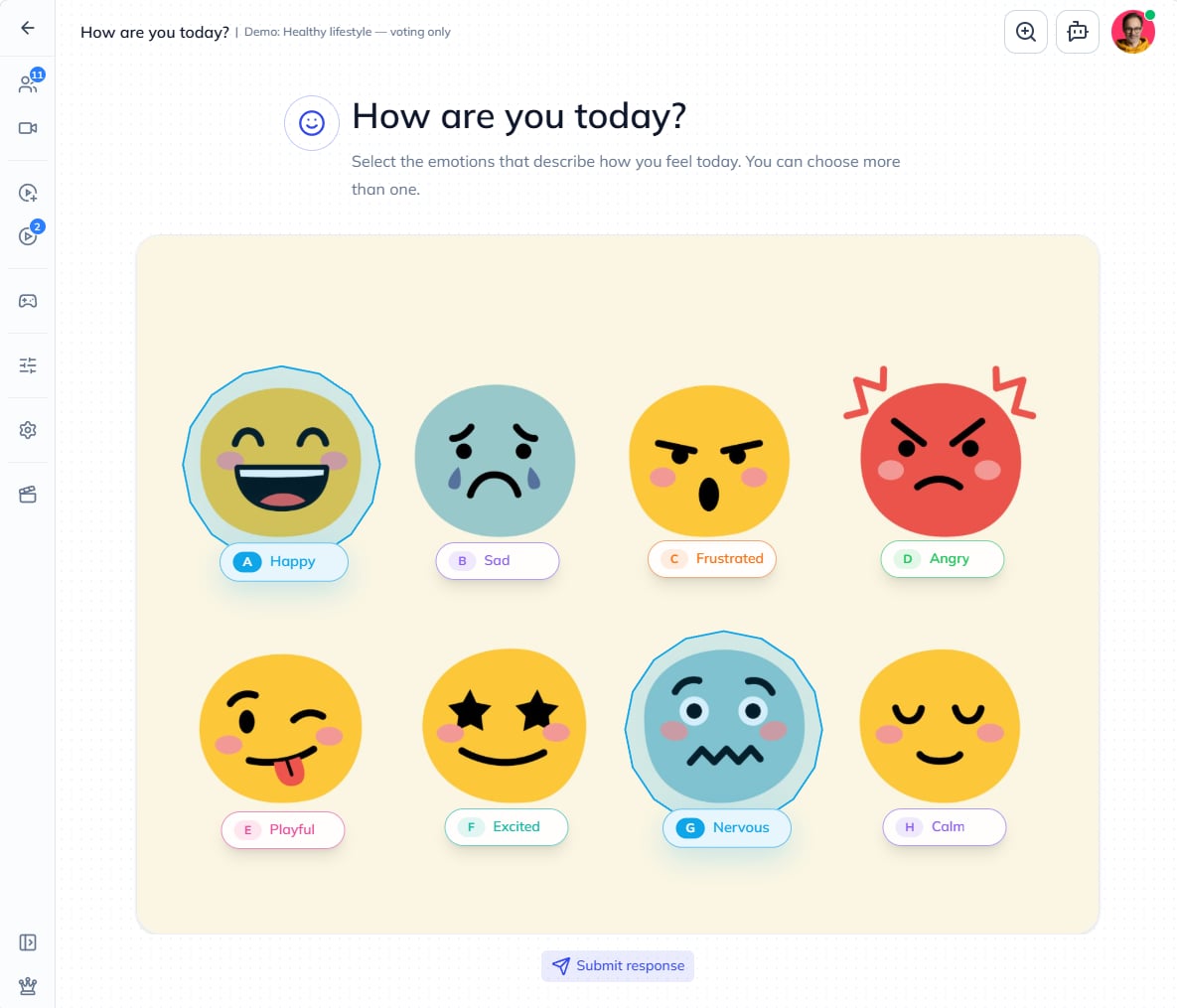
- Use image-based layouts for single-choice, multiple-choice, ranking, and scale-rating polls.
- Upload your own image and draw the zones participants will choose from.
- Customize answer labels, icons, and colours to suit your question.
- Show results on the image, including placement badges.
- Start with a ready-made poll, such as Desert Island or How are you today?
- Randomize answer presentation while keeping answer letters consistent for people responding through Zoom chat.
- Rank answers more easily on touchscreens, with improved dragging.
- Present polls more clearly on Stage, the shared presentation screen.
- Show a cumulative quiz leaderboard so participants can follow their scores across questions.
Build an activity around the way your group needs to think
A plain board doesn’t always give participants enough guidance. You may want them to place ideas along a journey, respond to different parts of a picture, or work through a particular framework. You can now build that visual activity yourself in Stormz. Choose a template or upload an image, define the areas people will use, and connect them to your questions or categories.
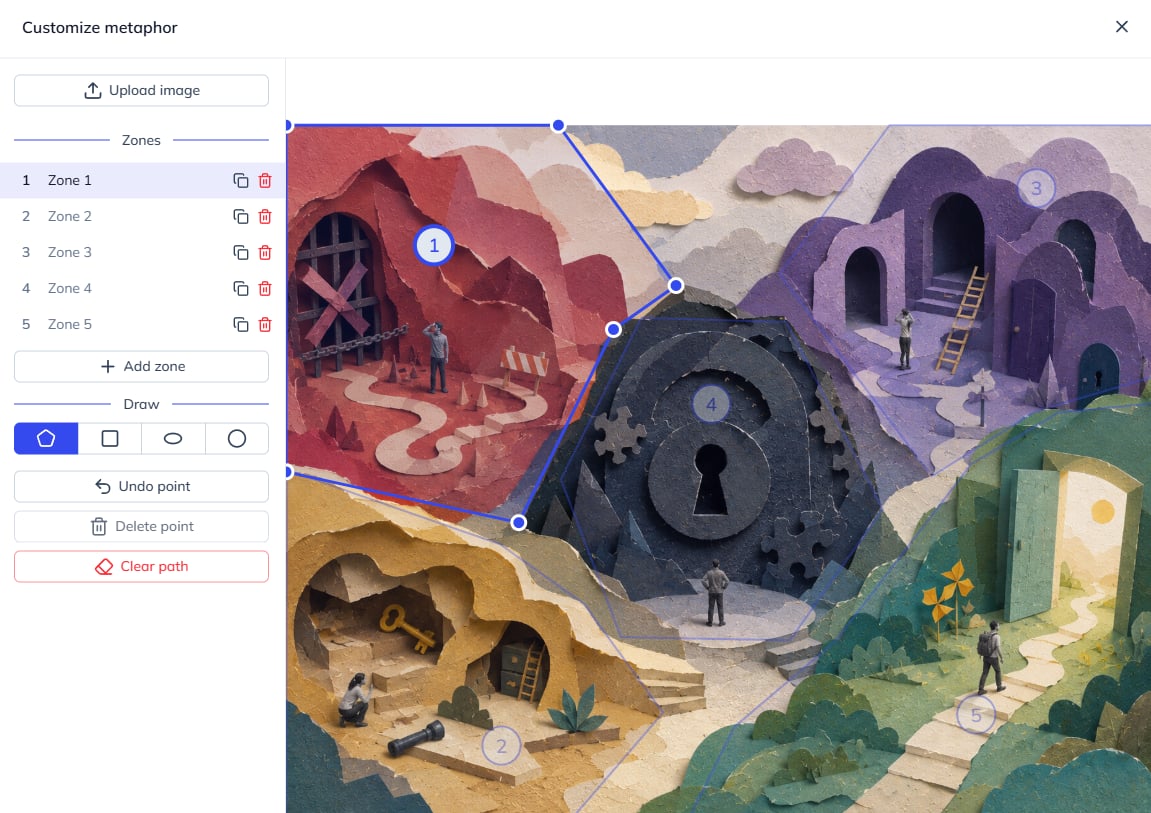
- Start with a built-in visual template, your own image, or a blank metaphor.
- Draw and edit interactive zones, adding or removing them as your activity takes shape.
- Position zone labels where they make sense on the image.
- Connect zones to questions or classifications so the visual layout supports the activity’s structure.
- Switch templates without losing the underlying cards.
- Use the SCAMPER preset to structure an idea-generation activity.
- Start from improved question-led presets, with clearer overall instructions.
- Customize pins with icons, emoji, or labels, with better popovers and guidance for placing the first pin.
Make sense of a crowded board without losing anyone’s ideas
When a group contributes lots of ideas, the board can become hard to discuss. Similar suggestions appear in different places, and sorting them takes time. You can now stack cards to bring related ideas together and keep the board readable. Do it yourself or ask AI to help. Each contribution keeps its own text, author, and votes.
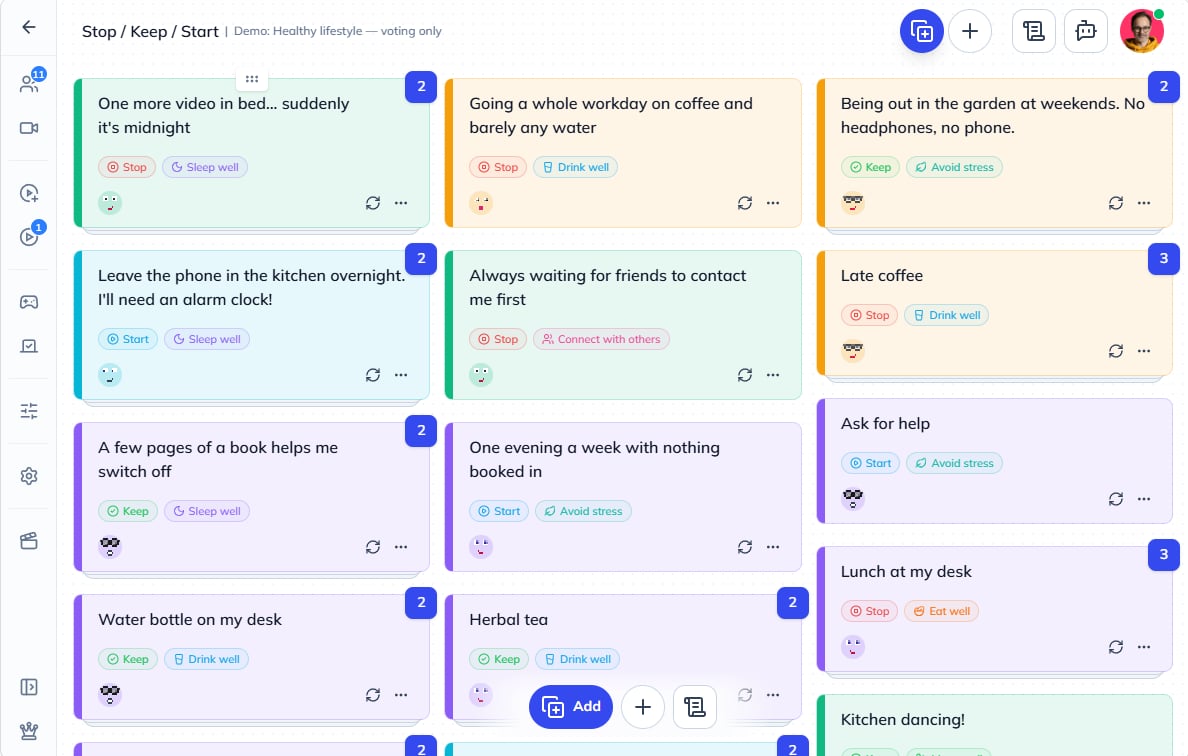
- Select several cards and stack them under one visible card.
- Open a stack to read all the contributions inside.
- Reorder a stack or choose which card appears on top.
- Combine stacks and drag cards into or out of them.
- Unstack cards in bulk when you want to see them separately again.
- Find related cards by meaning, beyond matching words.
- Prepare existing cards for related-card search, individually or in bulk.
- Ask AI to suggest stacks, focusing on near-duplicates or more broadly related ideas.
- Classify new cards automatically into existing categories, or classify existing cards in bulk. AI fills missing assignments without replacing the ones already there.
- Reorder cards manually in Card Wall and Metaphor views.
- Move cards in a matrix to update their row and column placement together.
- Create row and column values directly in the matrix, and sort rows and columns in either direction.
- Select a whole group or column through its card count.
Choose a way to vote that fits the decision
Dot voting is useful for picking favourites, but you may need people to express support, flag concerns, or distinguish ideas worth exploring from ideas ready to act on. You can now create your own voting choices in Stormz, with labels, icons, colours, and allowances that fit what you’re asking the group to decide. Set them up for each activity, adjust allowances during the session, and export the results afterward.
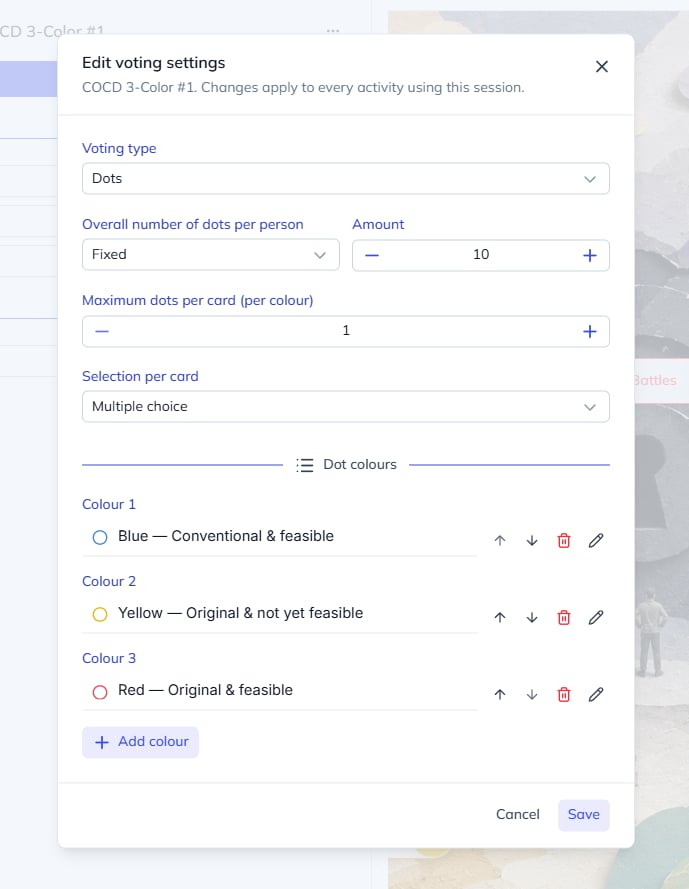
- Create custom voting schemes with editable choices, icons, colours, and allowances.
- Configure voting for individual activities, with prepared voting sessions preserved when the activity launches.
- Show remaining votes more clearly, including when a particular choice’s allowance is used up.
- Give participants more votes without starting the session again.
- Follow a live top-ten cards preview, visible only to the facilitator.
- Export voting results as CSV for follow-up work.
- Benefit from fixes to vote saving, score updates, and session changes, addressing problems that could interrupt a vote or leave results out of date.
Prepare your workshop with less time spent in settings
Preparing a workshop means moving between questions, instructions, views, and participation settings. Having to launch an activity just to edit it adds unnecessary steps. You can now configure activities directly from the playlist, with a simpler editor and autosave across many settings. It’s easier to get the sequence ready before participants arrive.
- Edit activities directly from the playlist, without launching them.
- Use the same simple activity editor in the sidebar and playlist window.
- Navigate between settings inside the editor to configure questions, polls, views, classifications, filters, cards, automations, and voting.
- Autosave changes to questions, instructions, classifications, polls, card settings, automations, and workshop settings.
- Edit instructions more clearly, including instructions derived from attached question sets and classifications.
- Set up automations with simpler controls and a defined execution order.
- Duplicate workshops across workspaces when you want to reuse a session elsewhere.
- Export library templates as JSON.
- Keep shared images safe during cleanup: images still used by another workshop are protected.
Stay focused on the group while facilitating
During a live session, switching from silent brainstorming to discussion or voting can mean changing several controls while people wait. Stormz now has one-click facilitation presets for those transitions. Quicker presentation controls also make it easier to adjust what the group sees while keeping your attention on the conversation.

- Switch between silent brainstorming, open brainstorming, debriefing, voting, and showing results with ready-made presets.
- Access views and filters quickly on Stage.
- Hide notification toasts on Stage when they would distract from the presentation.
- Use more consistent facilitator popovers and more accessible panel toggles.
- See when a filter is active, with a visible indicator.
- Control whether card authors are shown.
- Use mosaic card backs when displaying the backs of cards.
- Do more from a Stream Deck: switch board views, show the leaderboard, apply facilitation presets, change card front/back display, and control the Stage QR code and interface visibility.
- Use word clouds with stop words matched to the workshop language.
- Export shareable cards with improved landscape layouts and preserved paragraph formatting.
Make participation easier on phones and touchscreens
Participants often join from the device they have at hand. Small controls, awkward dragging, or a keyboard covering the card they’re writing can get in the way. I’ve reworked many of these interactions so it’s easier to navigate a workshop, contribute, and move cards on smaller screens.
- Cards resize with the available space, rather than relying on fixed lane counts.
- Select and drag cards more consistently across desktop and touch devices in the shared board views.
- Use improved drag previews, scrolling, and folding, with responsive Kanban columns.
- Navigate through a unified mobile workshop interface, with settings panels adapted to the screen.
- Create contributions through easier shortcuts.
- Write cards with better keyboard handling in card dialogs.
- Place pins using touch.
- Access zoom controls from the workshop toolbars.
- Avoid unwanted Safari input zoom and content hidden behind bottom controls, thanks to targeted fixes.
- Create or connect an account without losing an existing guest participant identity.
- Upload a profile photo.
Let AI assistants help with an existing workshop
If you use an AI assistant to prepare or review a workshop, copying settings and contributions back and forth takes time. Stormz’s MCP connection lets compatible assistants work directly with more of an existing workshop. They can read its setup, make supported changes, and retrieve results. Inside Stormz, AI features also have more control over language, images, and how new contributions are classified.
- Search workshops across accessible workspaces.
- Read activity configuration separately from contributions and results.
- Edit existing activity details and polls.
- Preview supported authoring changes before applying them.
- Update card classifications in batches and edit card text.
- Read and create stacks, with stack-aware operations.
- List voting sessions and retrieve their results.
- Receive more complete responses in text-only clients.
- Generate AI tags in the workshop’s official language.
- Choose image-generation prompt templates, including an option without an added visual style.
- Have Meeting Bot create cards that better respect classification filters, with related changes saved together.
Try things out before your next session
Reading about a feature doesn’t always tell you how it will feel with a group. Hands-on tutorials let you try the interactions before using them in a workshop, and the documentation gives you somewhere to turn when you need a particular setting explained.
- Try the card-stacking tutorial to practise organizing contributions.
- Try the dot-voting tutorial to work through a vote.
- Explore the updated Stop / Keep / Start tutorial.
- Read expanded documentation covering polls, visual metaphors, card organization, accounts, and billing.
- Read the article on handling duplicate ideas with stacks for a closer look at that facilitation choice.
Ten more days to explore, and an invitation to join me
There’s a lot here, and I want you to have time to try it. The alpha now ends on October 11, ten days later than planned.
Start with something useful for your next session. That might be a quick mood check, a visual activity built around your own image, or a better way to organize a board full of ideas. You don’t need to use every feature to get value from Stormz.
If you’d like to explore it with me, join Get Started with Stormz on September 29 at 17:00 Paris time.
Register for Get Started with Stormz
Alex
How I handle duplicate ideas in workshops
How I use Stormz stacks to keep every contribution, prepare clearer votes, and save time with AI while reviewing the decisions myself.
The Power of Objects in Facilitation
Tangible objects help groups enter abstract conversations, say difficult things, and create useful distance from sensitive topics.