

Connect Claude AI and ChatGPT to Stormz
This guide explains how to connect Stormz to Claude AI or ChatGPT using MCP.
The Stormz connector URL is:
https://stormz.ai/mcp
Before you start
You need:
- a Stormz account with access to the MCP connector
- access to Claude AI or ChatGPT
- MCP or custom connector support enabled in your AI tool
- permission to add a custom connector
If you cannot find connector settings, your AI plan or workspace may not support custom MCP connectors yet.
The connector uses your Stormz account. It can only access workshops and actions that you are allowed to use in Stormz.
Connect Stormz to Claude AI
- Open Claude AI in the web app.
- Go to Settings.
- Open Connectors.
- Click Add custom connector.
- Enter:
- Name:
Stormz - URL:
https://stormz.ai/mcp
- Name:
- Click Add.
- Sign in to your Stormz account when asked.
- Review and approve the requested permissions.
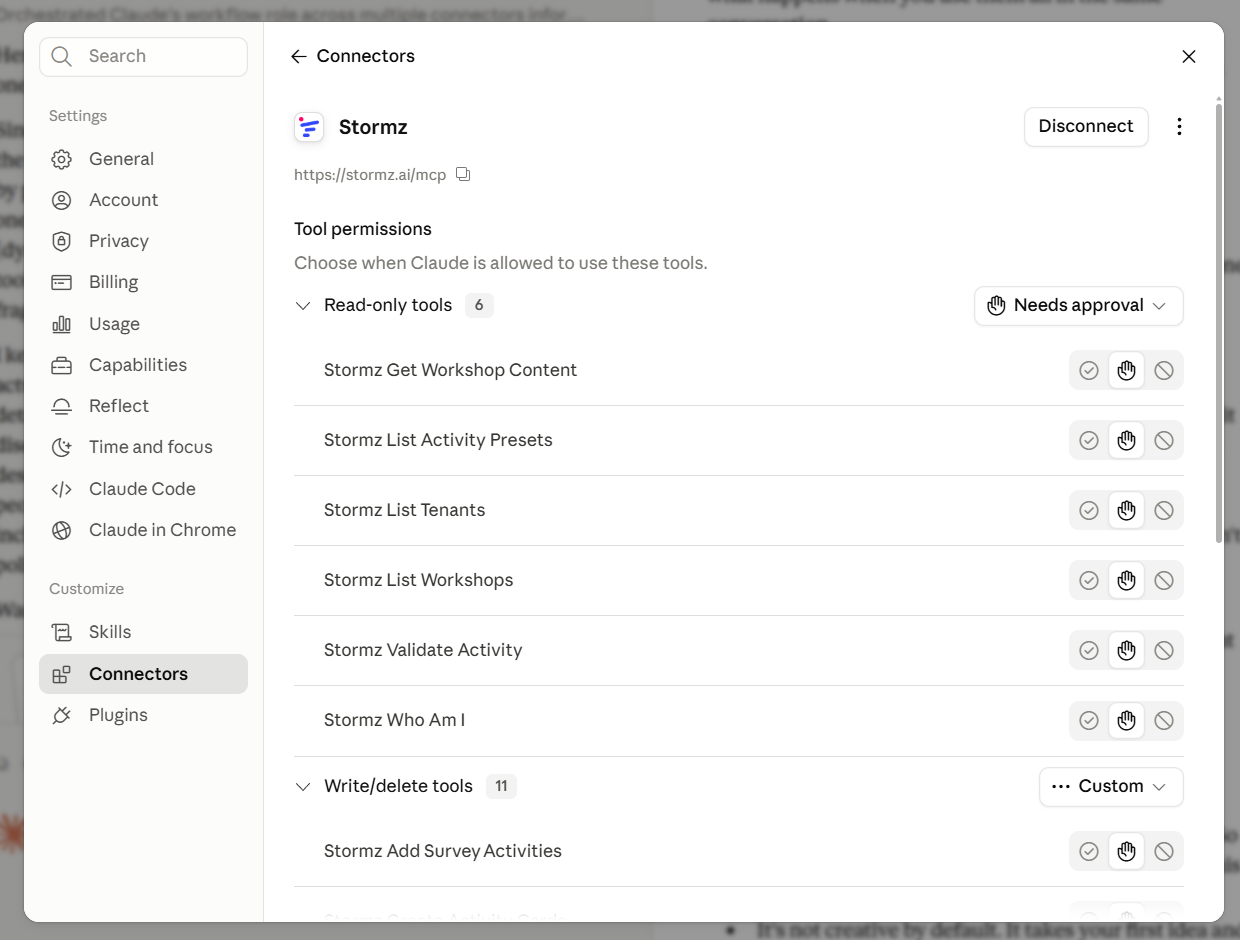
Once connected, Stormz becomes available as a tool inside Claude. Claude lets you choose whether read-only and write/delete tools always require approval, can run automatically, or are disabled.
Start by checking the connection:
Stormz, who am I?
You can then ask Claude things like:
List the Stormz workshops I can access.
Create a workshop for a 90-minute team retrospective.
Add a brainstorming activity with three questions to my workshop.
Claude should show you the proposed change and ask for confirmation before it creates or changes workshop content.
Connect Stormz to ChatGPT
ChatGPT connector setup depends on your plan and workspace settings. You may need a paid plan and developer or connector features enabled.
- Open ChatGPT.
- Go to Settings.
- Open Apps & Connectors.
- Open Advanced settings if needed.
- Enable Developer Mode if ChatGPT asks for it.
- Click Create app, Create connector, or Add custom connector.
- Enter:
- Name:
Stormz - Server URL:
https://stormz.ai/mcp
- Name:
- Choose OAuth or the recommended authentication method.
- Sign in to your Stormz account when asked.
- Review and approve the requested permissions.
Once connected, ChatGPT can use Stormz tools in your conversations.
Ask this first to verify the connection:
Stormz, who am I?
Permissions and security
The connector uses OAuth, so you should not need to copy an API key or password into Claude or ChatGPT.
When you connect:
- review the permissions requested by the AI tool
- make sure you sign in with the intended Stormz account
- confirm write actions before the AI changes workshop content
- remove or disconnect Stormz from your AI tool's connector settings when you no longer want it to have access
Connecting Stormz does not give the AI access to every workshop. Normal Stormz access and facilitation permissions still apply.
Troubleshooting
I cannot find custom connector settings
Look for settings named Connectors, Apps, Custom connector, MCP, or Developer Mode. If none are available, check whether your AI plan or workspace supports custom MCP connectors.
Sign-in or authorization fails
Check that:
- you can sign in to Stormz
- you used exactly
https://stormz.ai/mcpas the connector URL - your Stormz account has access to the MCP connector
- pop-ups and redirects are allowed during authorization
Then remove the connector and add it again.
The connector works but cannot find my workshop
Make sure you connected the same Stormz account that can access the workshop. The connector follows your existing Stormz permissions.
A write action is denied
You may be able to view a workshop without having permission to facilitate or change it. Open the workshop in Stormz and check that your account has the required facilitation access.
Good to know
MCP support is still evolving. Claude AI and ChatGPT may use slightly different labels or move these settings over time, but the Stormz connector URL remains:
https://stormz.ai/mcp