

Connect Claude AI and ChatGPT to Stormz
Connect Stormz to Claude AI or ChatGPT and you can work on your workshops from a chat: ask it to create a workshop, add activities or read the cards participants wrote. It takes about a minute, and it uses MCP, the standard way AI assistants connect to other apps.
The Stormz connector URL is:
https://stormz.ai/mcp
Before you start
You need:
- a Stormz account with access to the MCP connector
- access to Claude AI or ChatGPT
- permission to add a custom connector (Claude) or a custom MCP server (ChatGPT)
If you cannot find these settings, your AI plan or workspace may not allow custom connectors yet. In a company workspace, an admin may need to allow them.
The connector uses your Stormz account. It can only access workshops and actions that you are allowed to use in Stormz.
Connect Stormz to Claude AI
- Open Claude AI in the web app.
- In the sidebar, click Customize, then open the Connectors tab.
- Click + Add, then Add custom connector.
- Enter:
- Name:
Stormz - Remote MCP server URL:
https://stormz.ai/mcp
- Name:
- Click Continue. Claude detects the sign-in settings by itself, so you can leave them as they are.
- Click Add.
- A Stormz window opens. Sign in to your Stormz account if asked, review the permissions and click Allow.
Stormz now appears in your list of connectors, with a check mark.
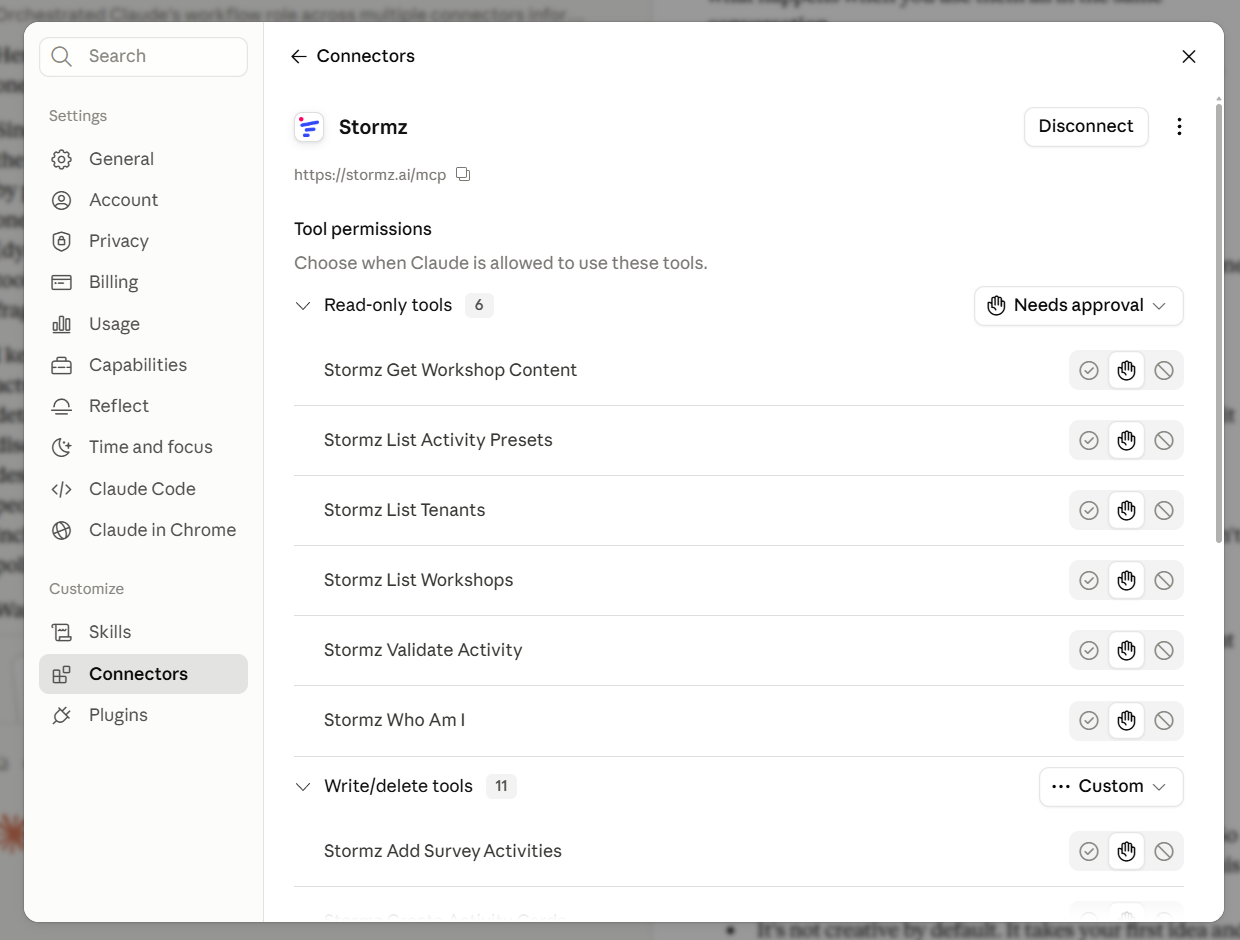
You don't need to switch the connector on in each chat. Name it in your question, and Claude uses it. Start by checking the connection:
Use the Stormz connector: who am I?
Claude asks before it runs a Stormz tool. Click Allow once, and it answers with the name and email of your Stormz account. In the connector's settings, you can choose whether read-only and write/delete tools always ask for approval, run automatically, or are disabled.
You can then ask Claude things like:
List the Stormz workshops I can access.
Create a workshop for a 90-minute team retrospective.
Add a brainstorming activity with three questions to my workshop.
Claude should show you the proposed change and ask for confirmation before it creates or changes workshop content.
Connect Stormz to ChatGPT
In ChatGPT, an app you connect through MCP is called a plugin.
- Open ChatGPT.
- Open Plugins from the left sidebar, or go to chatgpt.com/plugins.
- Click Add, then Add custom MCP server.
- Enter:
- Name:
Stormz - Connection: keep Server URL selected and enter
https://stormz.ai/mcp
- Name:
- Check that Authentication shows OAuth. ChatGPT fills it in once you enter the URL.
- Tick I understand and want to continue.
- Click Create as a plugin.
- Click Connect Stormz.
- A Stormz window opens. Sign in to your Stormz account if asked, review the permissions and click Allow.
You're back on the Plugins page, and Stormz is connected. You can leave the icon and description empty.
Name the plugin in your question to check the connection:
Use the Stormz plugin: who am I?
ChatGPT answers with the name and email of your Stormz account.
Stack cards through your conversation
Once connected, you can discuss how to stack cards, review proposed stacks, and create them over several rounds. You can use your own rules, such as pairing problems with solutions.
See Stack cards with Claude or ChatGPT for examples and steps.
Read and add comments on cards
Once connected, you can ask the AI to read the comments participants wrote on the cards of an activity, with their replies and reaction counts. It does not see who wrote each comment. For example, you can ask it to list the open questions people raised, or to tell you which cards started the most discussion.
You can also ask it to add a comment or a reply to a card. The comment is published under your name as soon as you approve its text. To edit or delete a comment, or to react to one, use Stormz itself.
Permissions and security
The connector uses OAuth, so you should not need to copy an API key or password into Claude or ChatGPT.
When you connect:
- review the permissions requested by the AI tool
- make sure you sign in with the intended Stormz account
- confirm write actions before the AI changes workshop content
- remove or disconnect Stormz from your AI tool's connector settings when you no longer want it to have access
Connecting Stormz does not give the AI access to every workshop. Normal Stormz access and facilitation permissions still apply.
Troubleshooting
I cannot find custom connector settings
In Claude AI, look in Customize > Connectors. In ChatGPT, look in Plugins > Add. Older versions of ChatGPT call them Apps, Connectors or Developer Mode. If none are available, check whether your AI plan or workspace allows custom MCP connectors.
Sign-in or authorization fails
Check that:
- you can sign in to Stormz
- you used exactly
https://stormz.ai/mcpas the connector URL - your Stormz account has access to the MCP connector
- pop-ups and redirects are allowed during authorization
Then remove the connector and add it again.
The AI says it can't reach Stormz
Name the connector in your question, for example "Use the Stormz connector" in Claude AI or "Use the Stormz plugin" in ChatGPT. If it still can't reach Stormz, check that the connector is in your list and shows as connected.
The connector works but cannot find my workshop
Make sure you connected the same Stormz account that can access the workshop. The connector follows your existing Stormz permissions.
A write action is denied
You may be able to view a workshop without having permission to facilitate or change it. Open the workshop in Stormz and check that your account has the required facilitation access.
Good to know
MCP support is still evolving. Claude AI and ChatGPT may use slightly different labels or move these settings over time, but the Stormz connector URL remains:
https://stormz.ai/mcp