

Flip and reveal cards
Each Stormz card has two sides.
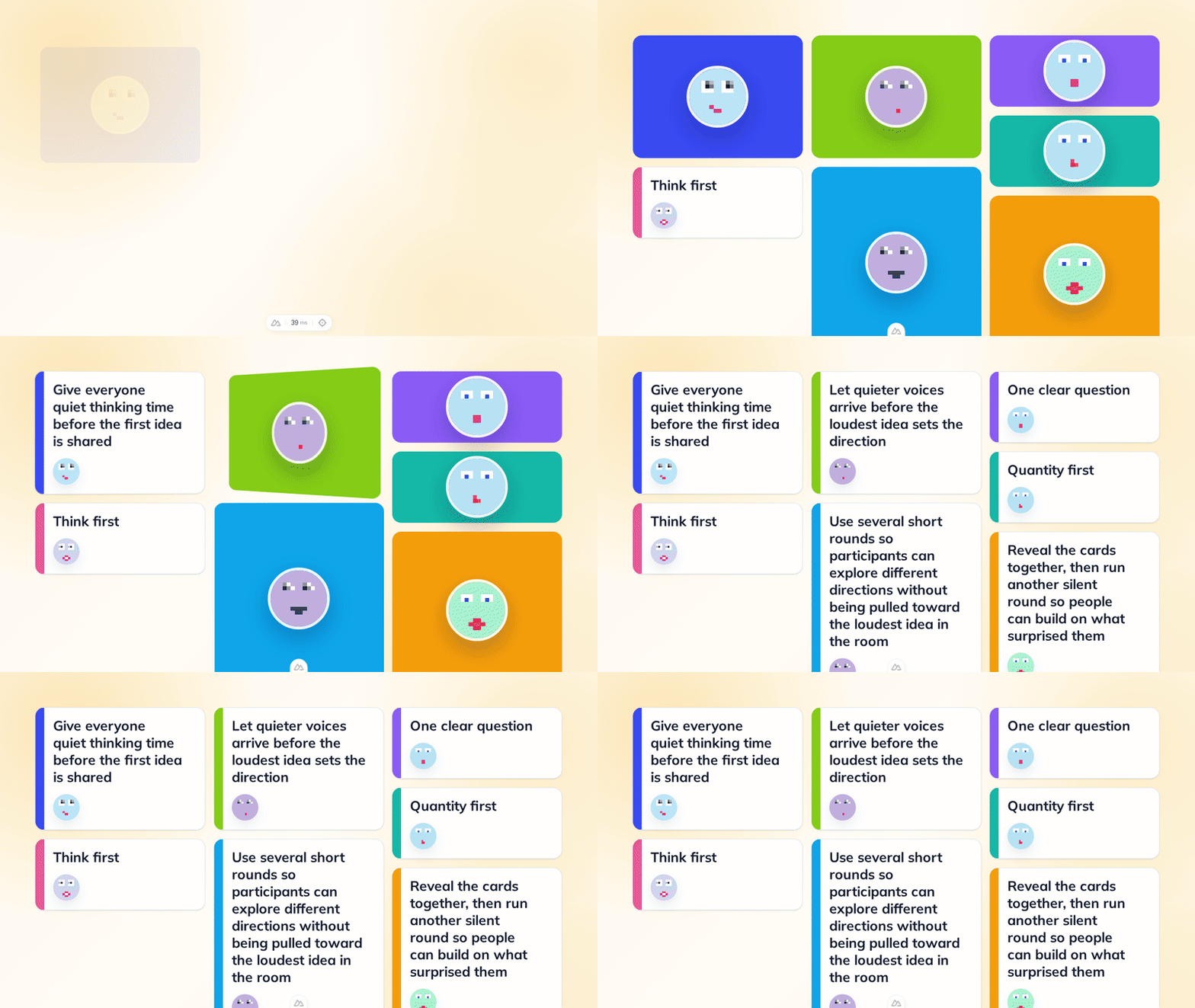
The front shows the contribution, such as an idea, an answer, or an image. The back hides that contribution. It can show a color, the Stormz symbol, a picture of the person who added the card, or the card's image.
Why hide cards?
For example, you ask, “What is stopping this project?”
If every answer appears at once, people may copy the first ideas they see. Quieter participants may decide that someone else has already said what matters.
You can avoid this by showing each new card to its author and showing only the back to everyone else. People can see that cards are arriving, but they cannot read them yet. This gives everyone time to think. When writing time is over, reveal all the cards and discuss them together.
You can also reveal cards one at a time. This helps the group focus on one contribution before moving to the next.
Flip one card
Move your pointer over a card and select the Flip button next to the three-dot menu.
What happens depends on the activity settings:
- Flipper only: the card turns only for you.
- Everyone: the card turns for everyone in the workshop.
Facilitators can hold Shift while selecting the Flip button to turn that card for everyone. They can also open the three-dot menu and choose Show front for everyone or Show back for everyone.
Some views show contributions as pins, rows, photos, or words instead of full cards. If you do not see the Flip button, switch to a card view such as Vertical or Kanban.
Choose who can flip cards
- Open Manage Cards in the Facilitator Bar.
- If you cannot see it, switch the Facilitator Bar to Expert mode.
- Find Card Permissions.
- Under Flip Cards, choose:
- None: participants cannot flip cards.
- Their own cards: participants can flip only cards they added.
- Any cards: participants can flip every card.
- If participants can flip cards, choose what their flip does under Flip applies to:
- Flipper only: only the person who flipped the card sees the change.
- Everyone: everyone sees the change.
- Select Apply.
Facilitators can always flip cards.
Choose which side people see first
In Manage Cards, find Card display, then Default face.
Choose a side for:
- Author: the person who added the card.
- Everyone else: every other person in the workshop.
For a normal activity, set both to Front.
For quiet writing, set Author to Front and Everyone else to Back. Each person can read their own contribution while the group waits for the reveal.
Select Apply when you are ready. The choice applies to cards already in the activity and to new cards.
Choose what appears on the back
Under Back style, choose:
- Color by: uses the Color by choice in Change View. For example, Participant uses the author's color and a person icon. A category uses that category's color and icon. If no icon is available, Stormz shows its symbol.
- Stormz: shows the Stormz symbol on the card's current color.
- Author: shows the author's color and picture.
- Card image: fills the back with the card's image. If the card has no image, Stormz uses the Color by style.
The Author style is useful during quiet writing. People can see who has contributed without seeing what they wrote.
Reveal several cards at once
Open Control Remotely in the Facilitator Bar. Under Flip cards, choose:
- To front: show the front of every card.
- To back: show the back of every card.
- Like me: make everyone see the same mix of fronts and backs that you currently see.
To front and To back also change the default for new cards. The choice remains after you reload the page.
Like me is a one-time reveal. It does not change the default. Use it when you have prepared a mix of visible and hidden cards for the group.
What happens after you reload the page?
The Default face setting decides what people see after they reload the page.
A flip made on one card, including a Shift-click or Like me, is temporary. After the page reloads, that card returns to its default face.