

Control your workshop with Stream Deck
The Stormz plugin for Stream Deck lets facilitators control a live workshop from physical keys.
Use it to launch activity presets, move through your workshop playlist, switch board views, manage polls and voting, toggle automations, manage Meeting Bot chat, open or close instructions, and spotlight cards for live presentation or OBS overlays — without switching tabs or opening sidebars while facilitating.
What you need
- A Stream Deck
- The Stormz plugin for Stream Deck
- Access to a Stormz workshop where you have facilitation controls
- A Stormz Stream Deck token
What Stormz keys can do
The plugin includes these Stream Deck actions:
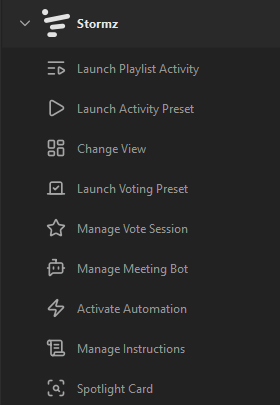
- Launch Playlist Activity — move to the next or previous activity in the playlist
- Launch Activity Preset — add or launch a built-in Stormz activity preset
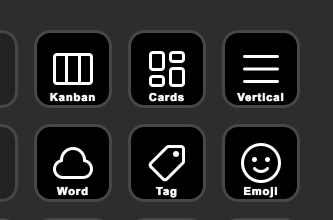
- Change View — switch to Kanban, Vertical, Masonry, Table, Word Cloud, Tag Cloud, or Emoji Cloud
- Launch Voting Preset — create a voting session from a voting preset
- Manage Vote Session — start or stop voting, show or hide vote results
- Manage Survey — reveal or hide poll results or the configured good answer
- Manage Meeting Bot — pause the bot or toggle Meeting Bot chat commands
- Activate Automation — enable or disable one automation for the active activity
- Manage Instructions — open or close the current activity instructions for everyone in the workshop
- Spotlight Card — move or clear the highlighted card
Step 1 — Choose the workshop controlled by Stream Deck
Stream Deck controls one Stormz workshop at a time.
- Open your workshop in Stormz.
- If the Stream Deck button is not visible in the Facilitator Bar, switch to Expert mode. See Facilitator Bar for how to switch modes.
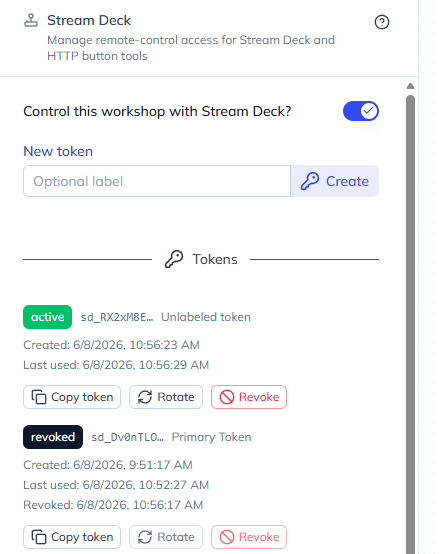
- Open the Stream Deck panel in the facilitator sidebar.
- Turn on Control this workshop with Stream Deck?
Now Stormz knows which workshop to control when you press a Stream Deck key.
You can turn this switch off later if you do not want Stream Deck to control any workshop.
Step 2 — Create a Stream Deck token
The token is a secret used to make sure only you can control your workshop from Stream Deck. Do not share it.
In the same Stream Deck panel:
- In New token, optionally enter a label.
- Click Create.
- Copy the token immediately.
Important:
- the raw token is shown only once
- if you lose it, create or rotate a token again
- if a token is exposed, revoke or rotate it immediately
Step 3 — Configure the Stormz connection once
In the Stream Deck app:
- Drag any Stormz action onto a key.
- In the property inspector, find the Connection section.
- Set API URL to:
https://stormz.ai
- Paste your Stream Deck token in Token.
- Click Test connection.
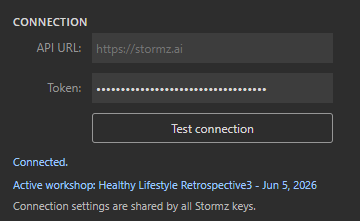
If the connection works, the property inspector shows the current active workshop name. The API URL and token are shared by all Stormz keys, so you only need to configure them once.
Step 4 — Add Stormz keys
Drag Stormz actions onto the keys you want to use, then configure each key in the property inspector.
Launch Playlist Activity
Use this action to move through the current workshop playlist.
Available commands:
- Next activity
- Previous activity
If you press Next activity at the end of the playlist, the key briefly shows End. If you press Previous activity at the beginning, it briefly shows Start.
Launch Activity Preset
Use this action to create a new activity from a built-in Stormz preset.
Choose:
- Preset — Brainstorm, Retrospective, Sailboat, Word Cloud, Single Choice Poll, and more
- Action:
- Add next and launch immediately
- Add next in playlist
- Add last
- Add first
The preset provides the activity title, icon, questions, view, poll options, classification, automation, and voting defaults.
Each Activity Preset key uses the same icon as the selected Stormz preset.
Change View
Use this action to switch the shared workshop view.
Available views:
- Kanban
- Vertical
- Masonry
- Table
- Word Cloud
- Tag Cloud
- Emoji Cloud
Launch Voting Preset
Use this action to create a voting session from a preset.
Available voting presets:
- Dot Voting
- $100 Budget
- COCD 3-Color
- Simple Like
- Like / Dislike
- Emoji Reactions
You can choose whether the voting session starts immediately.
Manage Vote Session
Use this action to facilitate the active voting session.
Available commands:
- Toggle voting on/off
- Toggle vote results
- Start voting
- Stop voting
- Show votes
- Hide votes
Toggle keys read the current Stormz state and update their on/off visual state.
Manage Survey
Use this action to control what participants see during an active poll.
Available commands:
- Reveal / hide results: works when Results behavior is set to Wait to reveal.
- Reveal / hide good answer: works when the poll has a good answer, Reveal good answer is set to manual, and results are visible.
The key reads the current Stormz state and shows whether the results or good answer are visible.
Manage Meeting Bot
Use this action to control Meeting Bot behavior.
Available commands:
- Toggle chat on/off
- Pause bot
- Turn chat on
Pause bot turns off Meeting Bot chat capture. Toggle chat on/off changes chat capture and can be used even when no bot is currently active.
Activate Automation
Use this action to enable or disable an automation for the active activity.
Available automations:
- Auto-tag card
- Text to image
- Transform card to image
- Resolve location from text
- Translate card
- Proofread card
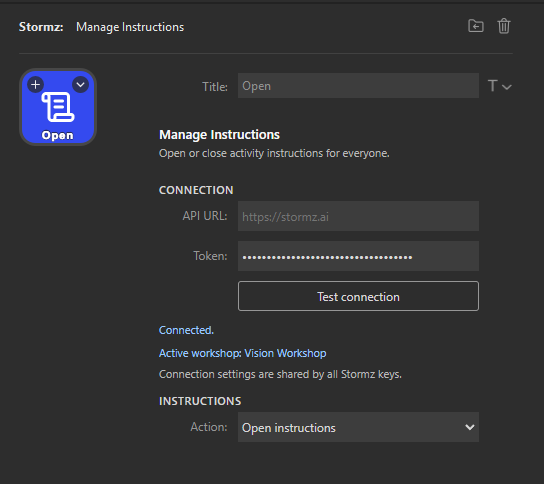
Automation keys read the current Stormz state and update their on/off visual state.
Manage Instructions
Use this action to open or close the current activity instruction panel for every connected participant.
Available actions:
- Open instructions
- Close instructions
Spotlight Card
Use this action to move or clear the card spotlight.
Available commands:
- Next card
- Previous card
- Clear spotlight
This is especially useful with Stormz presentation views or OBS overlays.
How it works in practice
When you press a Stormz key:
- Stream Deck sends the command to Stormz.
- Stormz authenticates your Stream Deck token.
- Stormz finds the workshop selected for Stream Deck.
- Stormz executes the command and broadcasts the result to the live workshop when needed.
How to change the Stream Deck workshop
No need to reconfigure your Stream Deck keys.
Before a new session, you usually only need to:
- open the new workshop in Stormz
- switch the Facilitator Bar to Expert mode if the Stream Deck button is hidden
- open the Stream Deck panel
- turn on Control this workshop with Stream Deck?
Your keys stay the same; the selected workshop changes in Stormz.
If you want Stream Deck to stop controlling workshops, turn the switch off in the currently selected workshop.
How to rotate and revoke your token
From the Stream Deck panel in Stormz, you can:
- Rotate a token to get a new secret
- Revoke a token to disable it immediately
If you rotate a token:
- update the token once in any Stormz key property inspector
- the old token stops working
If you revoke a token:
- any key using it stops working immediately
Troubleshooting
A key does nothing or shows an error
Check:
- the Facilitator Bar is in Expert mode if you need to access the Stream Deck panel
- Control this workshop with Stream Deck? is turned on for the right workshop
- the token is still active
- you pasted the full token correctly
- the API URL is
https://stormz.ai - you clicked Test connection and it succeeds
- your Stormz participant has facilitation controls in the workshop
I changed workshops and the keys affect the wrong one
Go back to Stormz, open the right workshop, then turn on Control this workshop with Stream Deck? in the Stream Deck panel.
Your keys stay the same; the selected workshop changes in Stormz.
I lost the token
Stormz cannot reveal it again.
Create a new token or rotate the existing one, then paste the new token once in the Stormz property inspector.