

Organize ideas on a visual metaphor
The Metaphor view places participant contributions on an image with named areas.
Each area gives people a visual prompt. They choose an area, add a card, and Stormz keeps that card connected to the area they selected.
Metaphor is a view. The contributions remain normal Stormz cards, so you can show them in another view whenever it helps the group.
Why use a metaphor?
A broad question can leave people wondering where to start. A visual metaphor gives them several simple ways into the question.
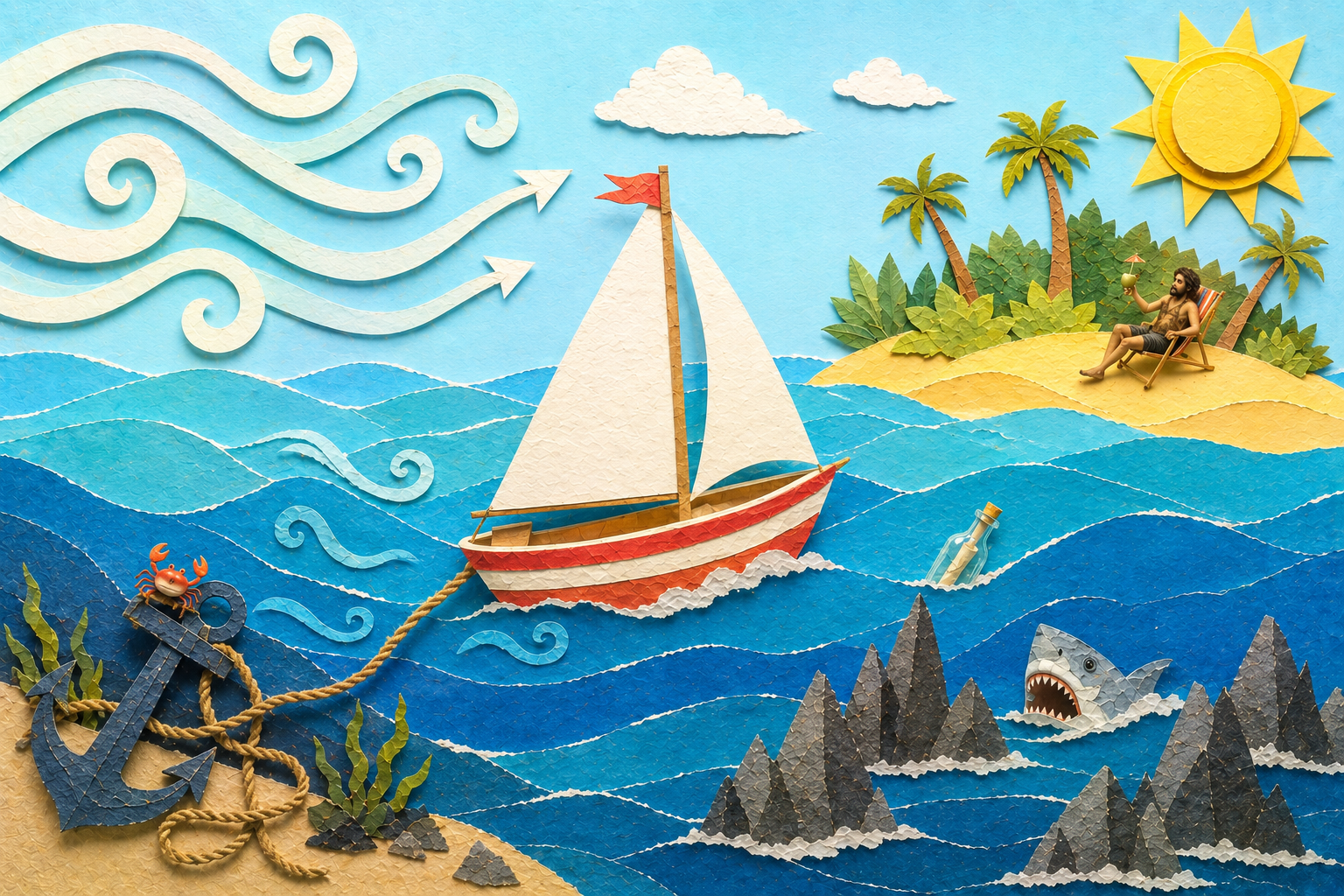
For example, a Sailboat retrospective can ask:
- Wind: What helps us move forward?
- Anchors: What slows us down?
- Rocks: What risks should we watch?
- Island: What are we trying to reach?
The image helps people think. The areas help them place each idea where it belongs.
How templates and zones work
A Metaphor view combines two parts:
- Template: the image and the position of its areas.
- Zones: the questions or labels that give those areas meaning.
Under Zones, Stormz shows the question sets and classifications attached to the activity. These are sets of labels used to organize cards.
Stormz connects them in order. The first question or label uses Zone 1, the second uses Zone 2, and so on.
For the clearest result, use the same number of questions or labels as zones. Extra zones stay hidden. If you have more labels than zones, the remaining labels do not appear in the Metaphor view.
Changing the order also changes where each label appears on the image. The cards stay connected to their original question or label.
Use a built-in template
- Open Change View in the Facilitator Bar.
- Select Metaphor.
- Under Template, choose Sailboat, Space Journey, or Escape Room.
- Under Zones, choose the questions or classification you want to place on the image.
- Select Save & Close.
Stormz updates the activity for everyone.
What participants do
- Select an area on the image or select its name.
- Review the cards already in that area.
- Select Add.
- Write the contribution and add the card.
Stormz places the new card in the selected area. Participants can zoom and move around the image when they need a closer look.
Create your own metaphor
You can use your own image and decide where its zones should be.
- Open Change View in the Facilitator Bar and select Metaphor.
- Under Template, choose Custom template. You can also select the pencil button to edit the current template.
- Select Upload image and choose a JPG, PNG, WebP, GIF, or SVG file up to 8 MB.
- Select a zone from the list on the left.
- If you want to redraw it, select Clear path.
- Select points around the area on the image. A zone needs at least three points.
- Drag a point to adjust the edge of the zone.
- Drag the numbered pill to place the zone name where people can see it.
- Use Add zone or Delete zone when you need a different number of areas.
- Select Done.
- Select Save & Close to share the change with participants.
Choose an image with clear areas and enough empty space for the zone names. Check that it is still easy to understand on a small screen.
Change the template later
You can change the image, redraw zones, or choose another built-in template at any time.
The change affects how the activity looks. It does not delete the cards. Each card stays connected to its question or classification value and appears in the matching zone.
Change the view when you are ready to discuss
The Metaphor view can help people think of ideas. The image gives them a visual prompt, and the zones help them decide where each idea belongs.
When everyone has finished, you can show the same contributions in another view. For example:
- Use Vertical to discuss one question at a time.
- Use Kanban to compare groups of ideas.
- Use Word Cloud to find words that appear often.
Changing the view does not delete or copy anything. You can return to the Metaphor view at any time.
Create a new Metaphor activity
When you create an activity, you can start with the Metaphor preset. It gives you three questions that you can replace with your own.
You can also create an activity from scratch, add your questions, and choose Metaphor during the View step. Choose a built-in template or create a custom one before creating the activity.
For a ready-made example, see the Sailboat Retrospective.
Metaphor or Pin on Image?
Both views use an image.
Use Metaphor when the image has named areas. A card belongs to one of those areas.
Use Pin on Image when the exact position matters. Participants place each contribution freely on the image.
Useful examples
- Run a retrospective with Wind, Anchors, Rocks, and Island.
- Show the stages of a customer or project journey.
- Explore risks on a map or landscape.
- Organize ideas inside your own visual framework.
- Use a playful image to help a new group start talking.